Use the Copy tool on the Job Quantities page to duplicate product quantities from one section to another. This is especially useful when sections share identical layouts (for example, repeating floors in a multi-story building). Copying quantities helps you avoid repeating takeoff work and ensures consistency across sections.
- In the blue navigation bar, select Jobs, then choose the job you want to update.
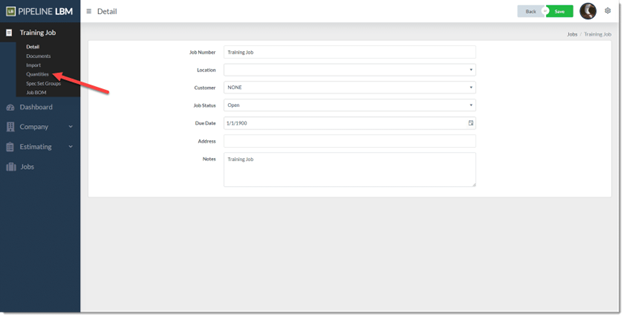
- From the job record, open Quantities to view all sections and their assigned product quantities.
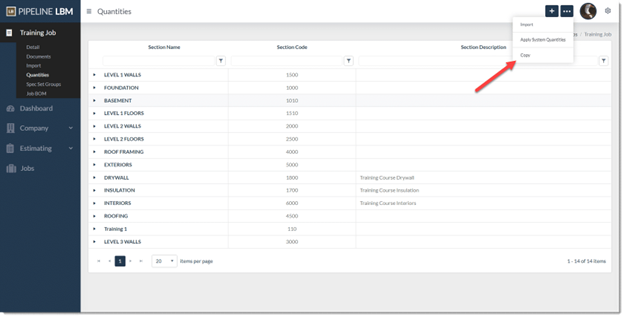
- On the Job Quantities page, click the … (ellipses) icon in the top right corner and select Copy.
- Select the source section (the section with existing quantities).
- Select the target section (the section that will receive the copied quantities).
- The system copies all quantities from the source section into the selected target section.
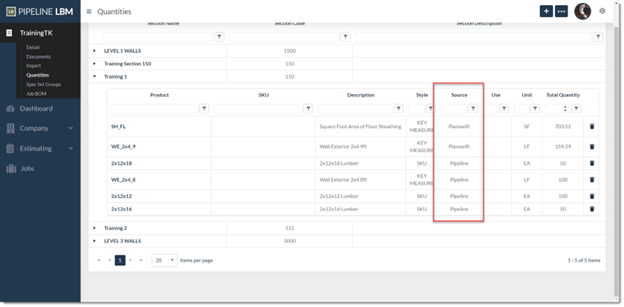
Copied quantities are additive; they can supplement existing takeoff quantities or stand alone. Each copied quantity includes source information, allowing you to track how it was created when generating a Bill of Materials.