SKU Products form the foundation of your Product Library in Pipeline LBM. They represent the items that match your back-office inventory and are required before you can build Key Measures. Use this procedure to create a new SKU Product and configure its basic properties, including category, style, measurement unit, SKU, and rounding behavior.
Create a SKU Product
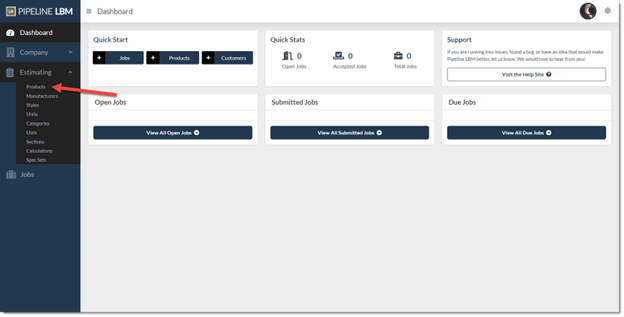
- From the Pipeline LBM Dashboard, hover over Estimating and click Products. This will open the Product Library.
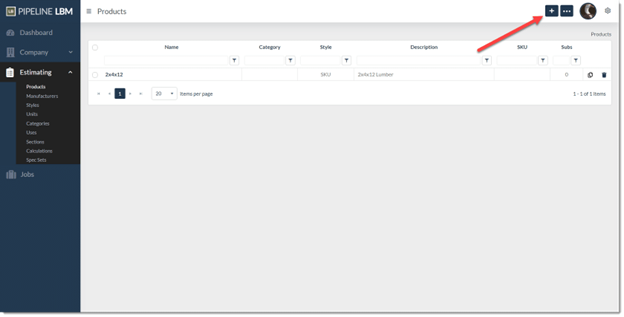
- Click the plus icon in the upper-right corner to create a new Product.
The New Product dialog will open. - Enter the relevant product information:
- Enter a clear, descriptive Product Name
- Select a Category to help organize the Product in the Job BOM. Categories are optional but recommended for clarity.
- Select a Manufacturer
- Select the SKU style from the dropdown menu
- Select a Unit of Measure (for example: EA, LF, SF, CY) from the dropdown.
- Add a SKU for the Product. This often matches the Product Name but may reflect your inventory system’s naming convention.
- Select Enable Lengths to let Pipeline LBM measure this SKU product by the linear foot and send counts of specific lengths to your point of sale system
- After selecting lengths, ensure the appropriate lengths appear
- Choose a Rounding Unit and Rounding Rule. These settings determine how Pipeline LBM handles fractional remainder quantities in the Job BOM.
- Enter any descriptive Notes that may help your team understand the Product’s use or context.
- Click Save.