About this task: Pipeline LBM users can create a take off in PlanSwift for import into Pipeline LBM. In order for both applications to accurately interact, it is important that Key Measures in PlanSwift, to be used in Pipeline LBM, are created and named with the exact same names. Use the steps listed below to add a new Key Measure in PlanSwift.
1. Locate and click on the Templates tab in PlanSwift.
2. Find an existing Key Measure with the same measurement type as the one being created.
Note: Measurement types are denoted by the small image labels next to the name.
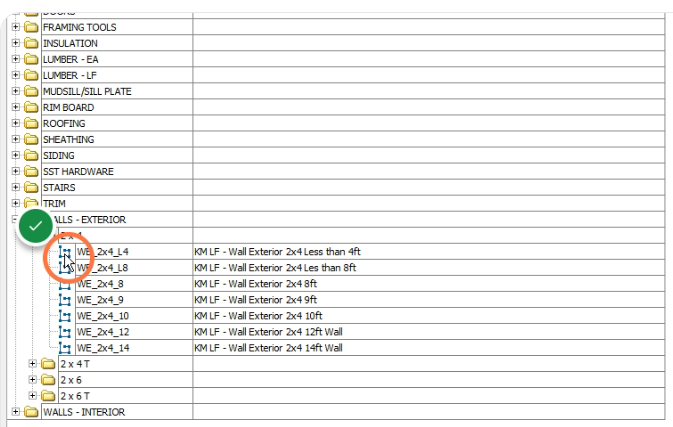
3. Right click and copy the existing Key Measurement that was found to have the same measurement type (linear, area, instance) as the new Key Measure to be added.
4. Once copied, paste the duplicate measurement.
Result: This will create two exact key measures, because the desire is that the intended new Key Measure and existing copied measurement be the same type.
5. Double click the pasted Key Measure to open its Properties form window.
6. Click Advanced.
7. Within the Advanced Properties window, the name and description can be edited for the new Key Measure that has been created.
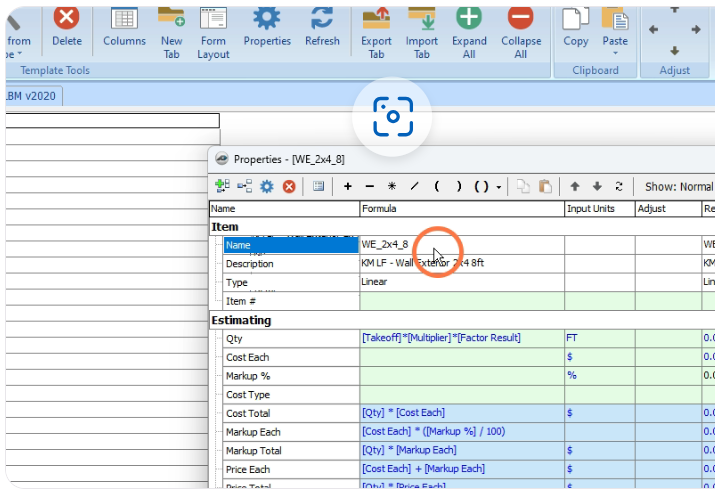
Result: A new Key Measure is now created. If needed, this can be placed into a new folder via drag and drop functionality.