After creating a job, importing quantities, applying Spec Sets, and generating a Bill of Materials (BOM), you can manually adjust SKU quantities directly on the Job BOM page. Manual edits allow you to make final corrections or project-specific adjustments before exporting or sharing the BOM.
- On the Job BOM page, select the ellipsis (…) menu in the upper-right corner and choose Edit Quantities.
A blue confirmation banner appears, and non-editable areas become temporarily grayed out.

- Expand the BOM as needed using the arrow icons.
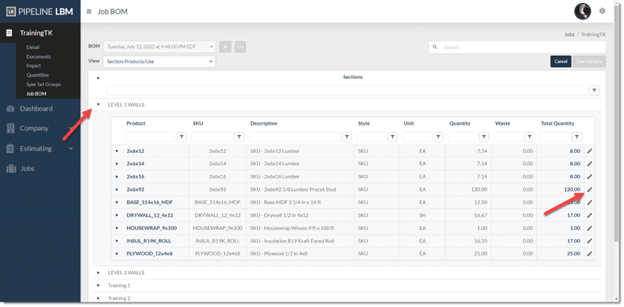
- Find the product you want to modify and select the Edit icon on the far right. The Modify Quantity dialog will open.

- In the Modify Quantity dialog:
- Verify you’re editing the correct product.
- If the product has multiple uses, select the specific use you want to update.
- Enter a new value in the New Quantity The current quantity displays and can be overwritten.
- (Optional) Add a note explaining the update. Notes appear only in the BOM trace and are not included in exported files.
- Click Save.In the Modify Quantity dialog:
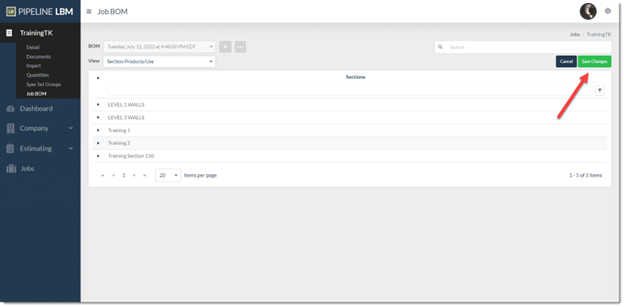
- After updating all necessary products, click the green Save Changes button.
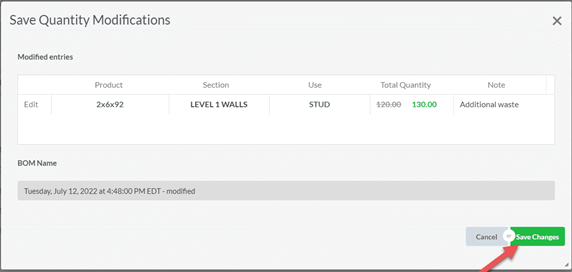
- Review your edits, then select Save Changes again to finalize.