After adding takeoff quantities to a Job, you can generate a Bill of Materials (BOM) in Pipeline LBM. The BOM organizes your Job’s data into sections, giving you a complete view of the required materials. Once created, you can also export the BOM for use outside of Pipeline LBM.
You can access your Job BOM page two ways.
Access the Job BOM Through the Takeoff Workspace
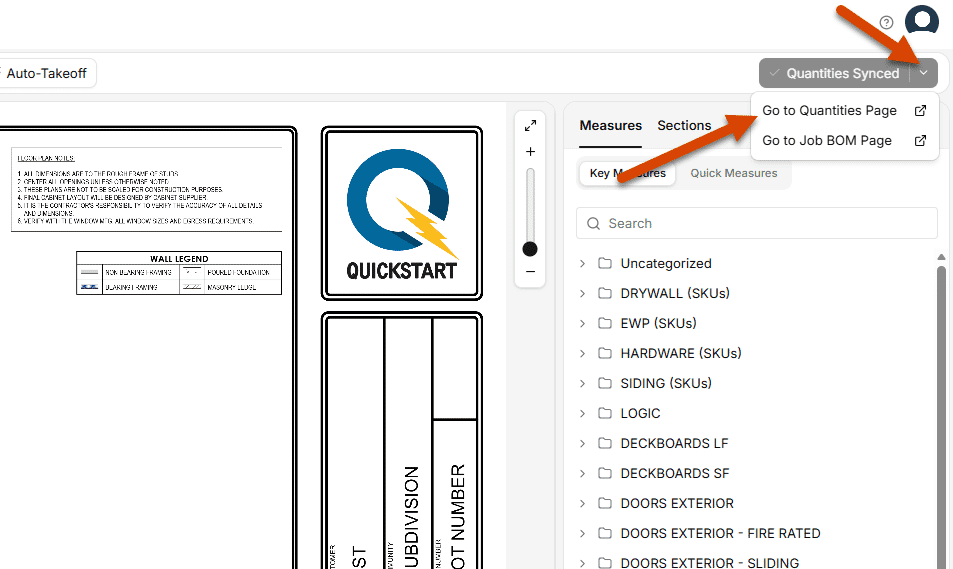
- Go to the Takeoff workspace.
- Select the dropdown arrow on the right side of the Sync Quantities button.
- Click the Go to Job BOM Page button.
Access the Job BOM Through a PLBM Job
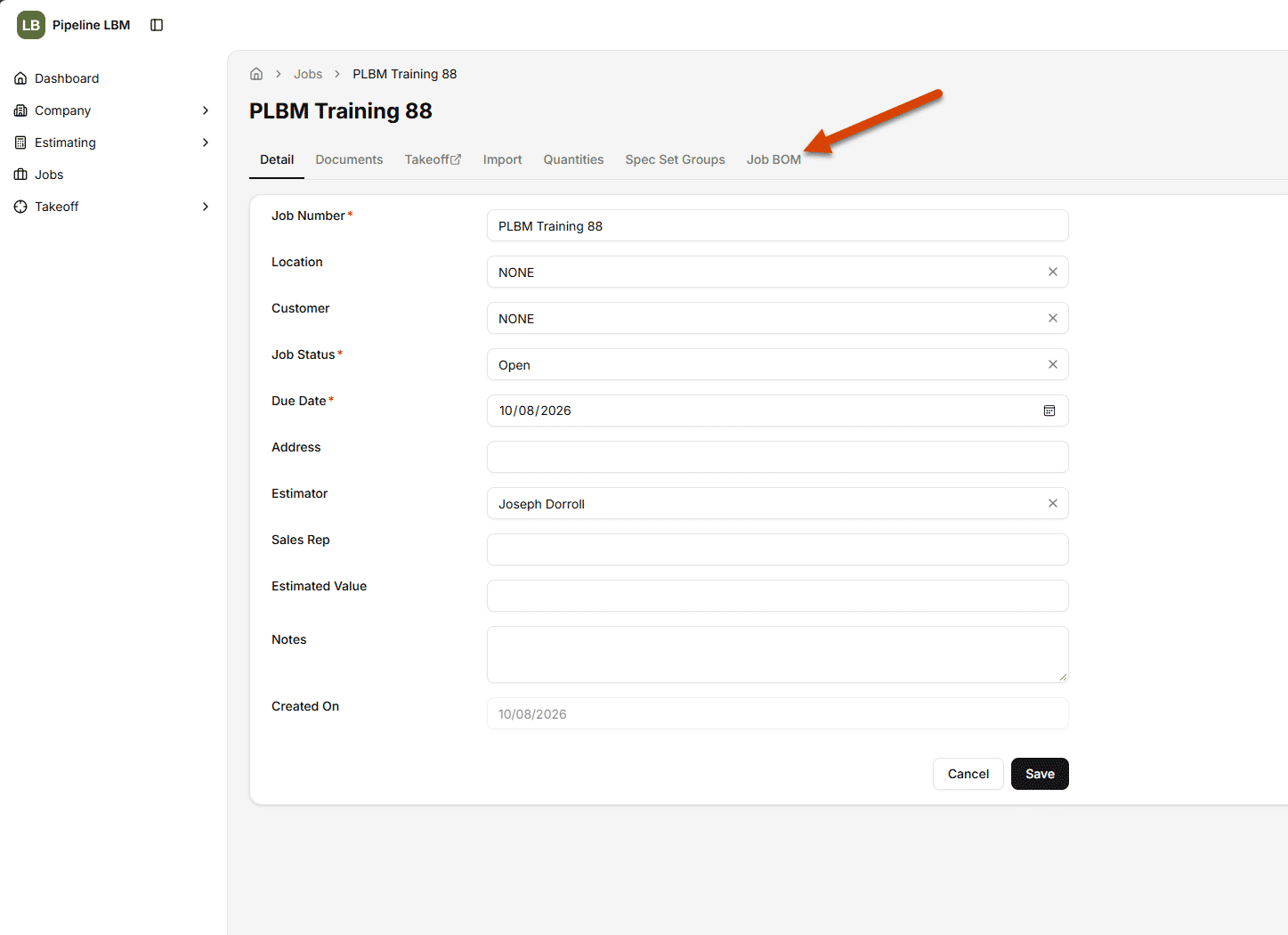
- Open a PLBM Job.
- Select the Job BOM subpage.
Generate a Bill of Materials
- On the Job BOM page, click the plus icon next to the BOM dropdown.
- Select Generate BOM.
- Review the populated BOM. The sections display automatically based on the quantities imported into Pipeline LBM.
Pipeline LBM has generated a Bill of Materials for your Job.
Once your Quantities have populated in a Job BOM, you are able to select the View dropdown to change how those Quantities are displayed on the Bill of Materials page.