Before you begin: Refer to Downloading PlanSwift for instructions on how to download the PlanSwift Software. Additionally, in order to complete this task, the file: SST Quickstart Templates must be the file used for import. If you do not have this file, click Simpson Strong-Tie Support and request it. This process will be similar to the one followed for importing Types. If you have not already completed importing Types that process is found here .
Importing Templates:
- Within PlanSwift, select the Templates tab from the task header at the top of the screen.
- Navigate to the Import tab.
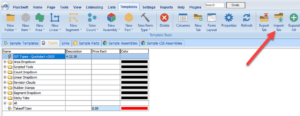
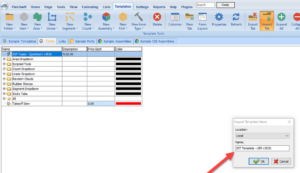
- Select the SST Quickstart Template LBM file from your computer. When the import window appears, confirm the name matches the customized Templates provided to your company.
- Click OK
Result: The imported Templates should now show in the Templates tab view as displayed in the below pic:
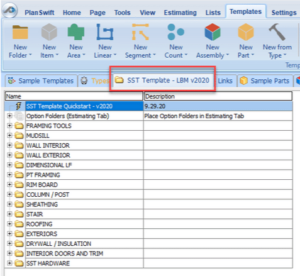
- Right click and select Hide for all of the other tabs. You will only need to see Types and SST Template.
- Once complete, close out of PlanSwift and re-open the application to move on with the setup.