The Pipeline Plugin formats PlanSwift exports for Pipeline LBM, enabling you to transfer data from PlanSwift to Pipeline LBM.
Installing the SST Pipeline LBM Plugin is the final step in the setup process for PlanSwift. Make sure you have completed the initial steps for PlanSwift set-up:
Before you begin: Use the SwiftPluginPackage file to install the SST Pipeline LBM Plugin. If you do not have this file, request it from Simpson Strong-Tie Support.
Install the Pipeline LBM Plugin:
Follow these steps to install the SST Pipeline plugin.
- Open a PlanSwift Job. We suggest that you use the pre-loaded PlanSwift sample plan.
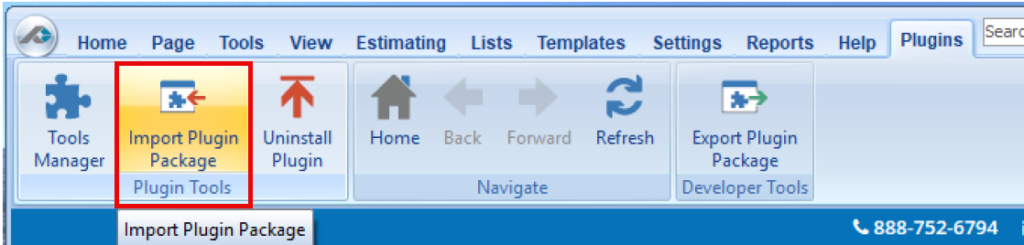
- Go to the Plugins tab in the top ribbon, then click Import Plugin Package.
- Use the directory window to locate the SwiftPluginPackage file.
- Follow the on-screen prompts to complete the installation.
- Restart PlanSwift.
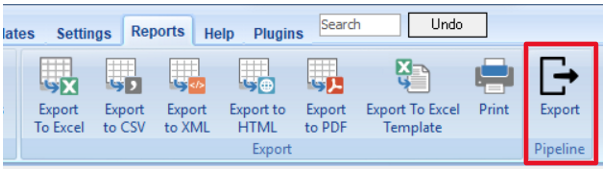
- To verify that the installation was successful, navigate to the Reports tab at the top of the screen. There, you should see the Pipeline LBM Export button. This is the screen you will return to when exporting data to Pipeline LBM for a takeoff.
Next, ensure your PlanSwift settings are correct.
Set the One-Time PlanSwift Settings
- Open a PlanSwift Job. We suggest that you use the pre-loaded PlanSwift sample plan.
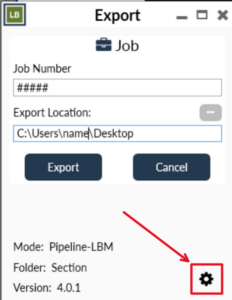
- Navigate to the Reports tab in the top ribbon. The SST Pipeline Plugin will appear in the Reports tab, labeled Export. Click this to open the Export dialog.
- Next, select the Settings gear.
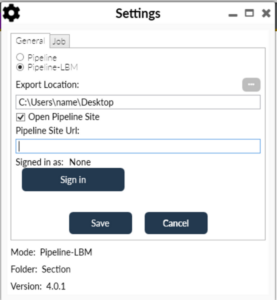
- Choose Pipeline-LBM, then fill in the Export Location and Pipeline Site URL fields.
- Click the Sign in button to enter your credentials to open Pipeline LBM when exporting.