Add a New User
Before you begin: Adding a User in PLBM requires Administrator access.
To add a new user in Pipeline LBM:
- Log in to Pipeline LBM.
- Click the
 (settings button) in the top-right corner.
 - Select Users from the SEttings Menu.
- Click the Plus icon
 . This will open the New User dialog.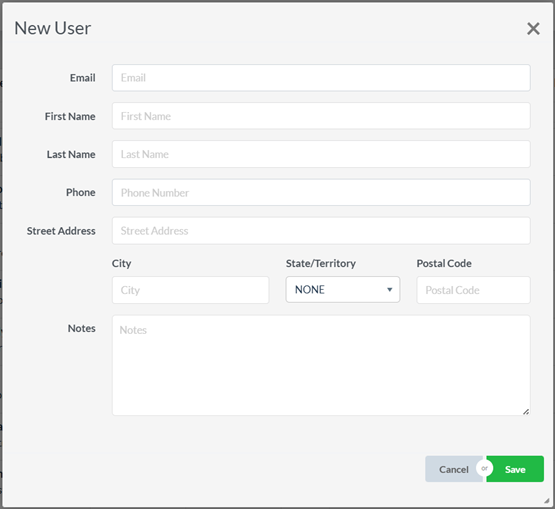
- Fill in the email, name, phone, and address fields. The email you enter will be the user’s login ID.
- Click Save. You can also choose one of the following options:
- Save and New– Save and start adding another user.
- Save and View– Save and go directly to the user’s profile to assign a role. If you do not, Pipeline LBM will automatically set the user’s role to Estimator.
Change a User’s Role
To update a user’s role in Pipeline LBM:
- Log in to Pipeline LBM.
- Click the gear icon in the top-right corner to open the Settings.
- Select Users from the Settings menu.
- Locate the user whose role you want to change and click their name to open their user profile.
- Scroll to the Role field and choose one of the following:
- Administrator – Full access; paid license required.
- Estimator – Can perform core functions; paid license required.
- Collaborator – Can only view and download documents; license is free. Note: See this article on User Licensing for more information on account roles.
- Click Save at the top of the page to apply the changes.
Important: Changes won’t be saved unless you click Save.