Most job quantities are imported into Pipeline LBM using .XML files from PlanSwift or other sources. However, you can also add quantities manually. Manual entry is useful when adding smaller adjustments or standardized quantities that apply to specific sections.
Manually Add Quantities to a Job Section
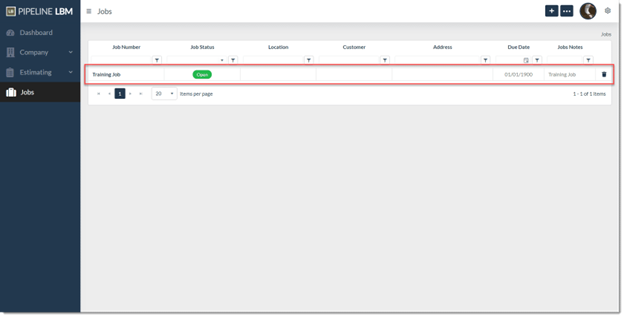
- On the Jobs page, select the job where you want to add quantities.
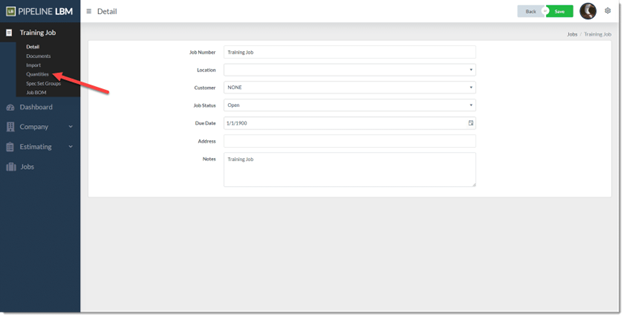
- In the blue navigation bar, open Quantities.
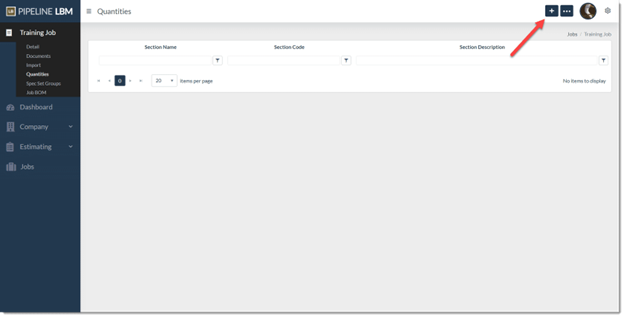
- On the Quantities page, click the + (plus) icon in the top right corner.
- The Add Job Quantities dialog will open.
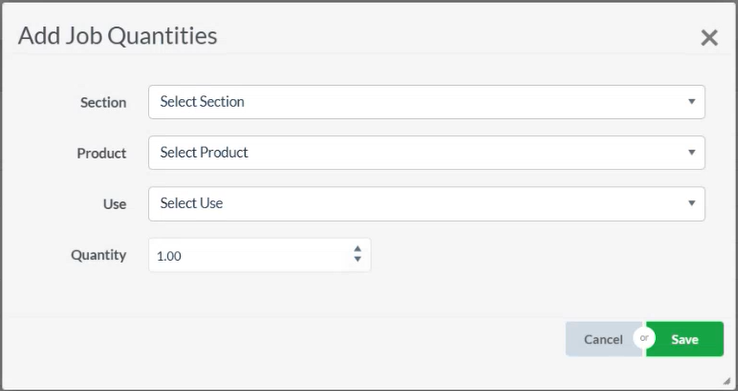
- In the Add Job Quantities dialog, choose:
- Section – where you want to add quantities
- Product – the product or key measure
- Use – choose a use (Optional)
- Quantity – enter the desired amounts for each product. Keep in mind whether your product or key measure is measured individually or by unit. For example, a wall is measured in feet, but a hurricane tie down is measured individually
- After filling in the quantities for the section, click Save or Save and New.
Add Section or System Quantities
- On the Jobs page, select the job where you want to add quantities.
- In the blue navigation bar, open Quantities.
- On the Quantities page, click the … (ellipses) icon in the top right corner.
- Select Apply System Quantities from the dropdown, and the Apply System Quantities dialog will open.
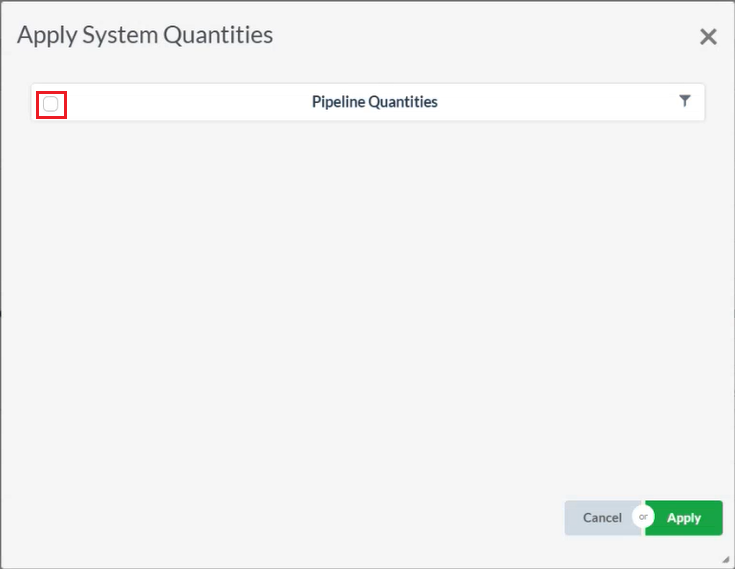
- If you’ve set up any section or system quantities, they will appear here. Mark the checkbox and then clicking Apply.